
Last Updated on 20th Dec 2023
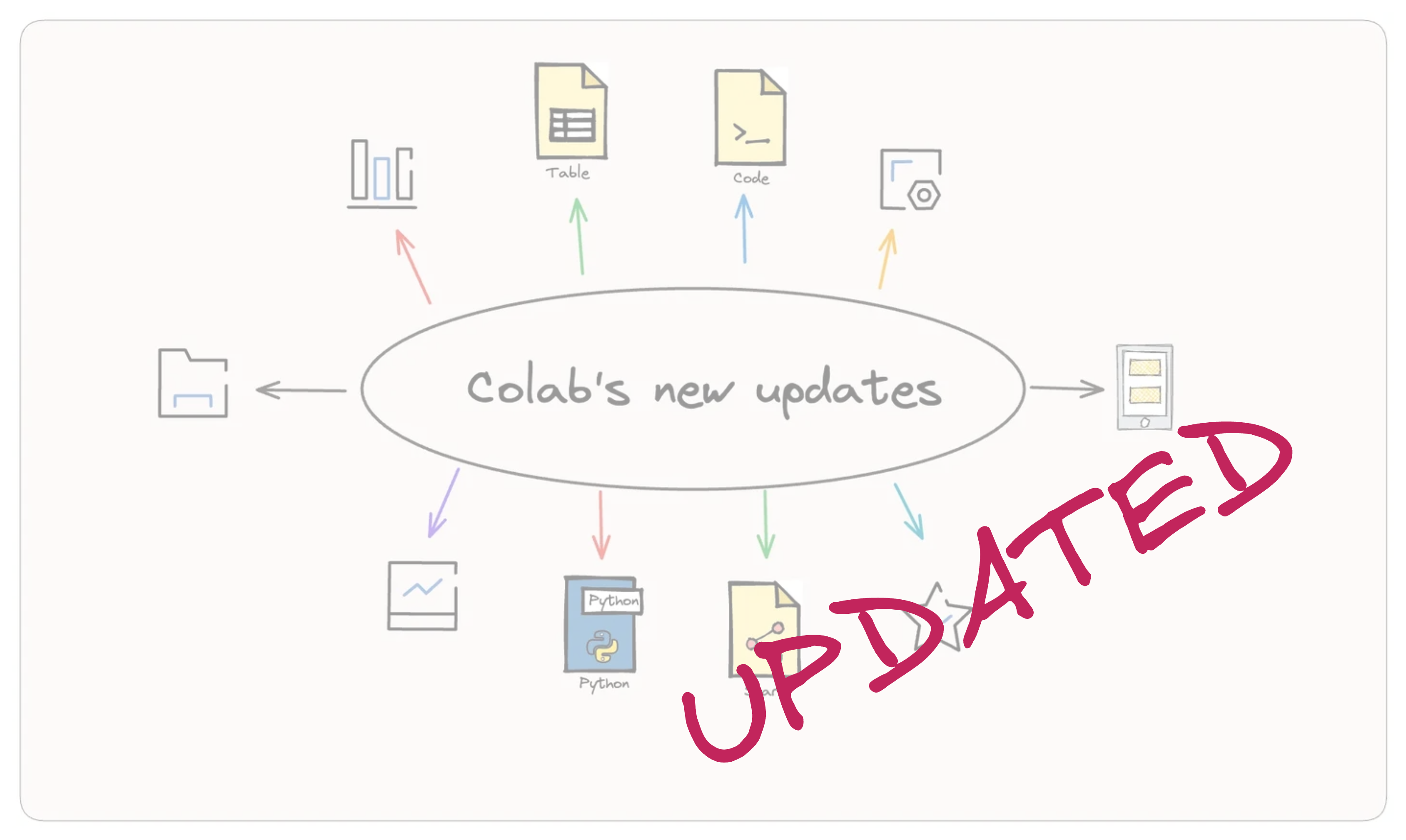
Whenever I conduct coding workshops or tutorials, Google Colaboratory Notebooks – or Colab, as it is more commonly known – remains my go-to resource. It removes the hassle of environment setup for both presenters and attendees, additionally offering free access to powerful computing resources like GPUs and TPUs. With its easily shareable links, Colab makes the entire learning process more efficient and effective. To make the most of what Colab has to offer, I consistently keep an eye on its latest releases and updates.
While I typically share these updates through LinkedIn occasionally, the extensive list of new and enhanced features deserves a more comprehensive article like this one. My previous compilation of Colab’s significant features was in 2022, indicating it’s time for an updated overview.
Let’s look at some of the standout features of Colab that have been invaluable in my work. I hope you find them equally beneficial.
1. Smart Data Pasting from Google Sheets
Now, when users paste data into an empty code cell, Colab automatically generates code to create a pd.DataFrame. This enhancement eliminates the extra steps traditionally involved in this process, making it a seamless user experience.

And that’s not all – if there’s already text in a code cell, Colab thoughtfully adds the CSV literal for you.
2. Automated Plot Generation from Pandas DataFrames
Data visualization in Colab is now more accessible with its new feature → the automated generation of plots from Pandas DataFrames. When you execute a code cell that concludes with a DataFrame reference, an auto-plotting button materializes at the lower right of your output.

Clicking this icon reveals a variety of recommended plots tailored to your DataFrame, each of which can be seamlessly added to your notebook with a single click.
As demonstrated, this feature not only showcases the rendered plot but also appends the relevant code, neatly placing it in a subsequent cell of your notebook.
3. Interactive DataFrames
Pandas dataframe offers a structured, tabular format that is intuitive and compatible with a wide array of data operations. With Google Colab, users can interact with these dataframes in real time. When a dataframe is loaded and displayed in Colab, a calculator-like icon becomes visible, as shown below.

By clicking on this icon, the dataframe transforms into an interactive table :

As you can see, we have a nice tabular formatting on display right away. The enhanced interactivity offers a lot of advantages, for instance:
- Adjusting the page size and using pagination offers a clearer data view.

- Simple clicks on column headers allow users to sort columns across the entire dataset, with updates instantly visible.

- Specific rows can be easily filtered using either direct string or regex matching. For example, to highlight cars of US origin, users can search
USAin theoriginfield. It’s also possible to set value boundaries in searches. Consider identifying all USA-origin cars from 1970–1971 with eight cylinders and a fuel efficiency of at least 15 miles per gallon.

- Data can be effortlessly copied in various formats, such as CSV, markdown, or JSON.

In essence, Google Colab’s Interactive Table supports dynamic data searches and filtering. This negates the need to continually re-run cells, making data insights quicker and improving the overall data exploration process.
4. Managing Cell Execution
Colab now supports two new features designed to streamline the way users run code cells in their notebooks.
- The first of these features allows users to effortlessly run a set of cells directly from the notebook’s table of contents. This can be done using the
Run cells in sectionoption found in the context menu, represented by three vertical dots.

- The second feature focuses on setting prerequisites within a notebook. Users can now designate specific cells to automatically run when a notebook is opened. This can be set up through the notebook settings dialog, located under the
Editmenu, where there’s an option toAutomatically run the first cell or section. If a notebook begins with just one cell, that particular cell will auto-run every time the notebook is accessed. Similarly, if a notebook starts with a section, then the entire initial section of cells will be auto-executed when the notebook is opened.

5. Easier Transitions between languages
Google Colab has updated its interface to simplify the process of switching between different languages. Users can now easily switch between installed kernels by going to Edit and then Notebook settings. The R programming language is one of the available options, as it’s installed by default.

6. Notebooks X Colab
By bridging the gap between diverse notebooks and the powerful Colab platform, Colab helps to enhance the user experience and expand Colab’s versatility.
1. Hugging Face 🤗 notebooks in Colab
Users can now effortlessly access, view, and run Hugging Face notebooks within the Colab environment, benefiting from its sophisticated execution functions and collaborative tools. This integration simplifies transitioning from model hosting on Hugging Face to live demos in Colab. Simply click Open in Colab at the top right of the notebooks to initiate and execute them within the Colab platform. You can read more about it here.

2. Popular notebooks ported to colab
Google Colab extends beyond just a platform for coding and executing machine learning models; it serves as an exceptional tool for storytelling that integrates intricate code. Colab boasts a collection of insightful case studies, for instance:
- Professor Ashwin Rao of Stanford University has crafted a compelling Colab notebook that delves into the high-level reasons behind the failure of Silicon Valley Bank (SVB).
- The Colab team has also successfully ported the popular [Ten Minutes to Pandas](http://10 minutes to pandas – in Colab!) tutorial, offering users an engaging introduction to pandas.
7. Quick Notebook Creation with Colab’s New URL Shortcut
Similar to how you can instantly create a new document using links like [docs.new](http://docs.new), or a new spreadsheet with [sheets.new](http://sheets.new) , there’s now an easy link for Google Colab, too! If you go to c[olab.new](http://colab.new), you’ll instantly start a new notebook.

8. Terminate Colab sessions programmatically
Another addition is the capability to terminate a runtime directly from the code.
from google.colab import runtime
runtime.unassign()
The unassign() function designates the active runtime for removal and severs connections to any notebook sessions. Whether it’s to conserve memory, reset a session, or end a project, this feature ensures that users can do so directly from their code environment with ease and precision.

9. Colab Link Previews in the Docs Suite
Colab link previews have been integrated into the Google Docs Suite. Now, links for Drive notebooks in Colab can be transformed into smart chips within the Docs Suite. Additionally, this enhancement allows users to request access to Colab Drive notebooks directly inline, simplifying the access procedure within the Google ecosystem.

10. Generate Colab badges
Check out openincolab.com to create a badge for your READMEs, websites, documents, and more. Simply input the URL of a notebook hosted on GitHub, test the badge, and grab the HTML code!

11. Easy Access to Transformers in Colab
Colab’s managed runtime images now come with the transformers library pre-installed, marking a small yet significant improvement for users. Keep your setup current with regular image updates, and for the latest features, use !pip install transformers --upgrade to force an upgrade.

This enhancement simplifies workflows and unlocks exciting capabilities, such as easily reading Huggingface datasets into Pandas.

12. Secure Your API Keys with Colab’s New Secrets Feature
Colab has introduced a new feature that allows you to securely store private keys, like your Huggingface or Kaggle API tokens. With Secrets, these values remain private, visible only to you and the notebooks you choose. This ensures enhanced security and peace of mind while working on your projects.

13. Colab Launches Limited-Time AI Code Assistant Trial for All Users
Colab is now offering a limited-time trial of their AI code assistant even to users on free plans. Access to AI-powered code assistance supports generating code from natural language and a code-assisting chatbot. According to an official blog post, Colab expects this to last well into 2024 while capacity is available.

Conclusion
In conclusion, these recent series of updates and enhancements to Google Colab have proved to be helpful in my day-to-day workings using the platform. From the integration into the Google Docs Suite to advanced data filtering capabilities and more, these updates collectively enhance Colab’s standing as a premier tool for collaborative data science. All these updates have been collated from their official release notes and blog, the links to which have been shared in the reference section. I encourage everyone to explore these features, and if you come across additional functionalities or have personal insights, please share them with the community. Your insights could greatly benefit others!


